 Vector Files Laser Cutting: Expert Guide for Perfect
Why Vector Files Laser Cutting Preparation Matters
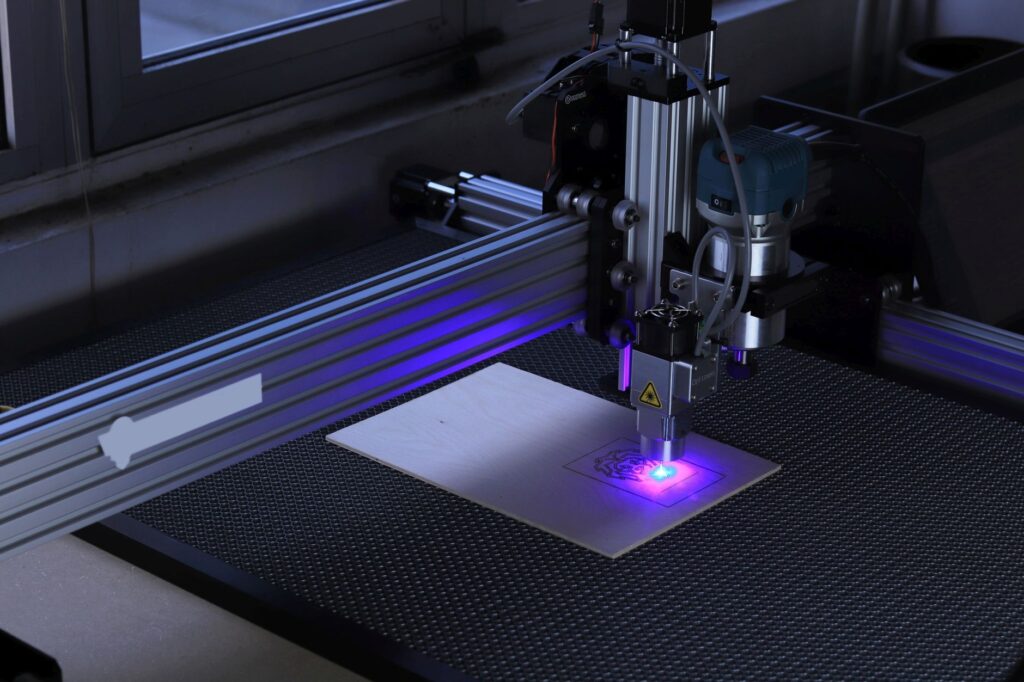
vector files laser cutting is the backbone of precision manufacturing, enabling you to transform digital designs into tangible products with extraordinary accuracy. Unlike raster images, vector graphics use mathematical paths to define shapes, making them infinitely scalable without losing quality. This is essential for laser cutters, which rely on clean, continuous lines to guide the laser beam. Without proper vector preparation, you risk misaligned cuts, incomplete patterns, or wasted material. In this comprehensive guide, we’ll walk you through every step to ensure your vector files are optimized for laser cutting success.
Whether you’re creating custom signage, intricate prototypes, or decorative panels, understanding the nuances of vector file preparation can save time and money. Many beginners assume any drawing program will suffice, but professional laser cutting demands specific file formats, stroke settings, and layer management. By mastering these techniques, you’ll achieve clean edges, consistent kerf, and repeatable results. Let’s dive into the essential steps.
Understanding Vector File Formats for Laser Cutting
Common Vector Formats: SVG, DXF, AI, and CDR
The first step in vector files laser cutting is choosing the right format. Most laser cutting machines accept SVG (Scalable Vector Graphics), DXF (Drawing Exchange Format), AI (Adobe Illustrator), and CDR (CorelDRAW). SVG is widely compatible and ideal for web-to-machine workflows. DXF is a standard in CAD environments, preserving precise geometric data. AI and CDR are native to their respective software but may require conversion for some machines. Always verify your laser cutter’s supported formats before starting.
Converting Raster to Vector: Tools and Techniques
If you have a raster image (like JPEG or PNG), you must convert it to a vector path. Use software like Adobe Illustrator’s Image Trace or Inkscape’s Trace Bitmap. For best results, start with high-contrast images and adjust threshold settings to capture fine details. After tracing, simplify the paths to reduce node count—this prevents the laser from hesitating on complex curves. Remember, vector files laser cutting requires closed paths for interior cuts; open paths may cause incomplete etching.
Setting Up Your Design File for Laser Cutting
Stroke vs. Fill: Which One to Use?
In vector files laser cutting, the laser follows the stroke (outline) of your shapes. Therefore, you must convert all fills to strokes of a specific thickness (typically 0.001 inches or 0.025 mm) to define cut lines. Some software allows you to assign stroke colors to different actions: red for cutting, blue for engraving, black for scoring. This color-coding is critical for multi-step jobs. Always set strokes to “hairline” or the thinnest possible width to ensure the laser interprets them as cut paths, not filled areas.
Setting Up Layers for Different Operations
Organize your vector file into separate layers for cutting, engraving, and marking. For example, create a “Cut” layer with red strokes, an “Engrave” layer with blue fills (for raster engraving), and a “Score” layer with green strokes. This layer-based approach streamlines the laser setup process and reduces errors. Many laser software programs, such as LightBurn or LaserGRBL, import layer colors directly. If your design includes text, convert fonts to outlines (paths) to avoid missing font issues on the laser machine.
Design Rules for Flawless Vector Files Laser Cutting
Minimum Feature Size and Kerf Compensation
Laser cutters have a physical beam width (kerf) that removes material. For vector files laser cutting, you must compensate for kerf by offsetting paths outward (for male parts) or inward (for female parts). Typical kerf ranges from 0.1 mm to 0.3 mm depending on material and laser power. Additionally, ensure that small features (like text stems or narrow slots) are at least 1.5 times the kerf width to avoid burning away. For acrylic, a minimum of 2 mm width is recommended for fine details.
Handling Text and Fonts
When incorporating text, always convert fonts to outlines (paths) in your vector software. This prevents the laser from misinterpreting missing fonts and ensures consistent rendering. For small text (below 12pt), consider using sans-serif fonts with even stroke widths. Avoid thin strokes that may disappear during cutting. For font selection laser-cut metal signs, bolder fonts work best for readability. After conversion, weld overlapping letters to create a single continuous path, reducing the number of pierce points.
Software Tools for Vector File Preparation
Adobe Illustrator: Industry Standard
Adobe Illustrator offers robust tools for vector files laser cutting. Use the Pathfinder panel to combine shapes, the Offset Path function for kerf, and the Color Guide to assign stroke colors. Save your file as AI or SVG with compatibility mode for older machines. For complex designs, use the “Simplify” command to reduce anchor points while preserving shape integrity. Illustrator’s Artboards also help you set up multiple parts on a single sheet.
Inkscape: Free and Powerful
Inkscape is a free alternative that handles vector files laser cutting admirably. Its “Stroke to Path” and “Dynamic Offset” features are perfect for kerf compensation. Use the “Extensions” menu to access laser-specific plugins. Inkscape’s SVG export is clean and widely supported. For batch processing, consider using the “Laser Tool” extension that generates G-code directly. Always preview your file in the laser’s software to verify cut paths.
Common Mistakes in Vector Files Laser Cutting
Overlapping Paths and Double Lines
One frequent error is leaving overlapping paths that cause the laser to cut twice, burning material and creating rough edges. Use the “Union” or “Combine” functions to merge overlapping shapes. In Illustrator, use Pathfinder > Unite; in Inkscape, select Path > Union. Also, check for stray points or tiny splinters that may cause unexpected burns. Run a “Clean Up” command to remove these artifacts.
Incorrect Scale and Units
Always set your document units to millimeters or inches before designing. A mismatch between your vector file and the laser software can result in parts that are too large or too small. For example, if you design in pixels but the laser expects millimeters, your 100 px square might become 100 mm instead of the intended 25 mm. Double-check the scale in your laser’s preview. For Custom Laser-Cut signage, precise scaling is crucial for brand consistency.
Optimizing Vector Files for Different Materials
Acrylic: Polished Edges and Stress Prevention
When preparing vector files for acrylic, set the laser power and speed carefully to avoid melting. For polished edge laser-cut acrylic, use a slower speed with multiple passes to create a flame-polished finish. Ensure your vector paths are smooth and continuous; sharp corners can cause stress cracks. Add small relief cuts (0.5 mm radius) at internal corners to distribute stress. For color acrylic, test the material’s transparency settings to avoid burning the backing.
Metal: Heat Management and Coating
Vector files for metal laser cutting require different considerations. Use a thin stroke (0.001 inch) for cutting, and avoid intricate details that trap heat. For laser cutting custom logos in metal, ensure your design has adequate bridges to hold parts in place. Apply a protective coating (like transfer tape) to prevent scorch marks. In your vector file, add a separate layer for marking (engraving) with a different color, typically black or blue.
Testing and Iterating Your Vector Files
Before committing to a full production run, always perform a test cut on scrap material. Use the same vector file and settings to verify kerf compensation, fit tolerances, and overall aesthetics. Adjust the stroke width or offset values based on the test results. Keep a log of successful settings for each material thickness. This iterative process ensures that your vector files laser cutting workflow becomes predictable and efficient. Remember, even experienced designers need to fine-tune their files for each new material batch.
Now that you understand the fundamentals of vector files laser cutting, it’s time to apply these techniques to your next project. Whether you’re producing Durable outdoor signs or intricate acrylic art, proper file preparation is the key to professional results. Contact our team for expert assistance or explore our top-quality laser cutting service to bring your designs to life with precision.